Many of our readers have found themselves, at one time or another, in the unfortunate position of trying to explain why the workers compensation mod went up from the previous experience period. The possible culprits are numerous and have a lot of moving parts: changes in
- expected loss rates,
- payroll,
- overall loss experience, or
- the mix of loss types (frequency, severity and/or medical-only losses)
We know you already use ModMaster to calculate and analyze the experience mod calculation (What? You don't? Learn more about ModMaster now), so in the past you would've undoubtedly used one of our many reports - perhaps the Loss Analysis by Policy Period, for example - to help see what's happened with the mod from one rating effective date to the next. Still, that involved selecting the desired mod file and requesting the desired reports, then opening up the mod file for the previous experience period and requesting those reports. So much paper and time and looking back and forth from one page to another.
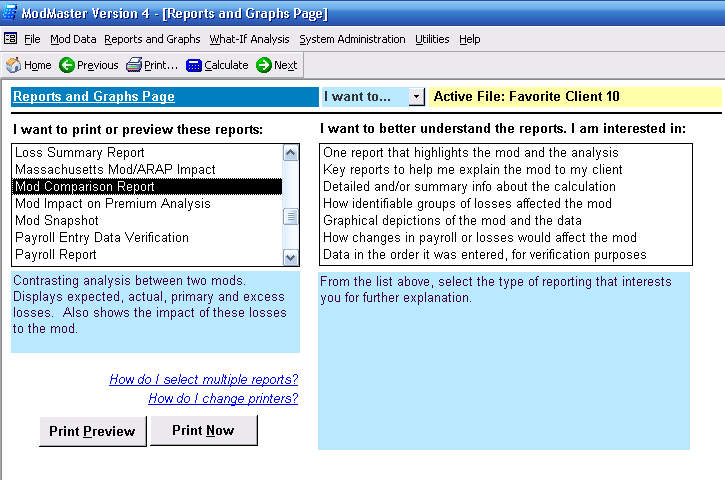
But now (drum roll, please), that's all changed. The new Mod Comparison Report, available in ModMaster update 09.08 and later, produces a two-page report that shows critical information for both the current mod file and a second mod file of your choice. Here's how to use this report for best results:
1. First, let's say that you have the 2009 mod for Favorite Client already loaded into ModMaster. You're ready to put in data for the 2010 mod. Start by doing a File Utilities/Rollover of the Favorite Client 2009 to a new name, let's say Favorite Client 2010. This deletes the oldest policy year of data (in this case the 2005 policy year) and "scoots" all the other data over on the payroll and small loss pages so that the newest column is empty and awaits your data input.
2. Input payroll and loss data (either estimates or actuals, if you have the data) for the newest policy data into the Favorite Client 2010 file. This would be the 2008 policy period for our example. Also make any other adjustments to existing payroll or losses to match the bureau worksheet.
3. Calculate the mod. If there are no errors, then proceed to the Reports Menu.
4. You'll see that the Mod Comparison report is now a choice on the Reports Menu. When you click on this report and then click "Print Preview" or "Print Now," the following dialog appears:
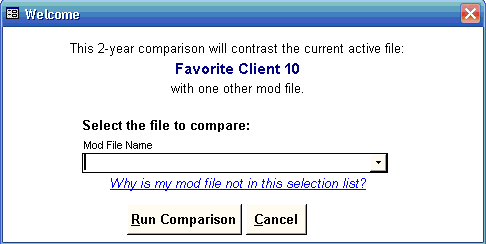
5. Now, here's the important part: when you pull down the list of mod files, be sure to select the mod file for the same risk but only one year earlier. While ModMaster will attempt to compare any two files you indicate, this report is designed to compare mods that differ by one and only one experience period. If you try to compare other mods, unpredictable results may occur, as we say in the software business.
6. After you select the mod file to compare to, click the "Run Comparison" button, and something like the following will print or preview. (Click the report image to view the report as a pdf.)

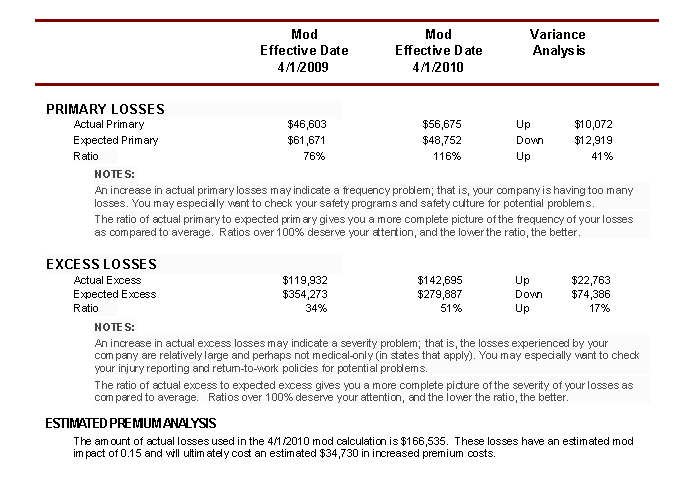
At a glance, you can see how much the mod changed from year to year, but just as importantly, how much the minimum and controllable mods have changed. You can also see what's happened with the expected and actual losses: whether they've gone up or down, and what's happening with actual to expected ratios.
In this case, we can see that the mod went up, not only because expected losses were down but also because the actual losses which dropped out of the calculation were less than the actual losses which were added for the 2008 policy period.
The new Mod Comparison report is based on a user suggestion we greatly appreciate. We've already had a new suggestion from a different user that we should also list payroll totals, not just expected losses. Give the report a try today and let us know what you think!


